
Exploring Apple Intelligence
With the exciting new Apple Intelligence features available with the iOS18 updates, it has been fun exploring the potential impact they might have on teaching and learning. I’d love to share a couple of potential workflows that I have been playing with.
The first video demo – is using Apple Intelligence within the Notes app. This workflow was inspired by fellow Apple Professional Learning Specialists, Michelle Forrest and Therese Griffith during the Back to School series.
This second demo addresses a challenge I constantly face as a teacher. That is, creating Keynote presentations. This is something that I usually find quite time consuming with the challenge of creating my content, formatting my presentation and sourcing images that aren’t subject to copyright restrictions. Check out how I can use the power of Apple Intelligence and Keynote to whip up a presentation in a matter of minutes!
These are just a couple of examples of how Apple Intelligence might have a positive impact on the day to day practice of an educator.
You can also check out Michelle and Therese’s post that steps you through more exciting workflows, including how to Remove Distractions from Photos and Reduce Interruptions with Focus.
Foster Early Years Literacy with iPad
As part of the Australian & New Zealand Apple Professional Learning Live series – we explored how we can support literacy and language learning for our early learners using Keynote on iPad.
We began with some very simple activities that I have used with my own students. These are activities that helped my students build some foundational iPad and Keynote skills and at the same time connect with their literacy learning.
Throughout the workshop we also looked at how we could create simple learning scaffolds/templates within Keynote for our younger learners who might find some of the Keynote creation processes a bit too complex. Keynote is a fantastic platform for creating such scaffolds and there is a wealth of awesome scaffold resources that have been shared via our Education Community.
Below is a Padlet that I put together for the workshop that contains video walkthroughs for everything we covered, along with some examples of scaffolds and links to other APLS resources that are well worth exploring. I also created some simple instructional videos demonstrating how you might make your own learning scaffolds using Keynote. Here is the link to access.

Supporting Te Reo Māori in the Classroom with iPad – Back to School Series
Tēnā koutou
As a part of this Back to School session, we had opportunity to hear how Bromley School (Ōtautahi, Christchurch, New Zealand) are using iPad to create exciting content that promotes and amplifies the use of te reo Māori. One of the most popular apps amongst the Bromley students, for creating such content – is Keynote. Keynote has enabled the students to create beautiful presentations, graphics and animations for their Te Reo TV initiative, as well as highly engaging interactives that help their peers (and teachers) learn the reo. We have even seen students at Bromley use Keynote to create their very own language app prototypes!
App prototyping is such a powerful design process that students can work through, with opportunity to create an authentic digital outcome that can make impact! It can also be a great way of engaging students with te reo Māori to create beautiful multimedia resources that others can learn from.
Here are some examples of te reo Māori app prototypes, published to our Education Community. Both of these posts include a step by step video demonstrations showing how these were created using Keynote on both iPad and Mac.
Example #1: Exploring App Prototyping to Promote Te Reo Māori
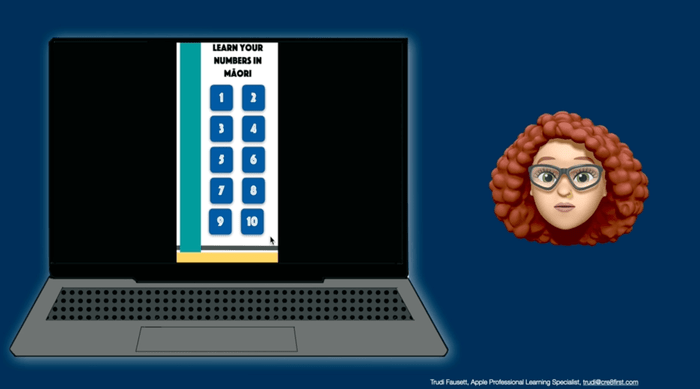
This is a simple app concept that my students came up with, designed for younger students learning te reo Māori. The language focus was learning the Māori kupu for selected animals and responding to the question ‘He aha tenei?’ (What is this?).
Link to post: https://education.apple.com/resource/250012069

Example #2: 5 tips to create your own App prototype using Keynote
This post was created by fellow APLS Trudi Fausett. In her demonstration video, Trudi shows us how to create a simple app with the aim of teaching basic Māori words or phrases.
Link to post: https://education.apple.com/resource/250011903
Further ideas – Creating an Interactive Pepeha
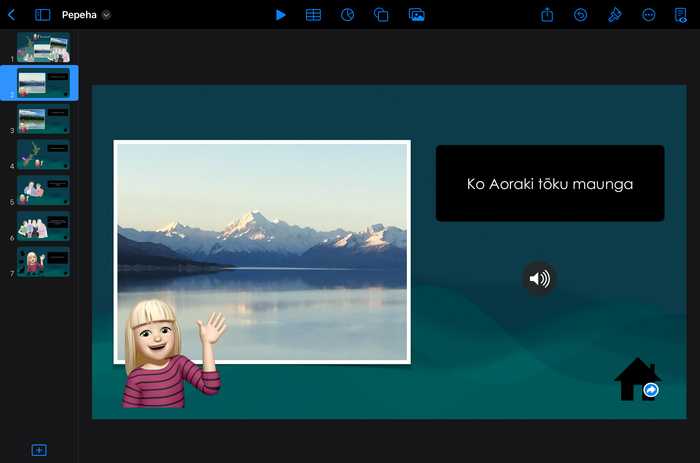
During our session, we also looked at the possibility of creating an interactive Pepeha using Keynote. In New Zealand Pepeha is a way of introducing yourself in Māori. It tells people who you are by sharing your connections with the people and places that are important to you. My example shows a home screen that is a collage of photos and sketches that represent elements of my pepeha. As you tap on each image, it reveals more about that place or that person and why they are really important to me.
This takes the traditional pen and paper worksheet to a whole new level with the opportunity for students to create a multimedia representation of who they are, with that unique opportunity to tell their stories through images and audio. I also like this activity because it gives students the opportunity to explain and really connect with their pepeha.

Going Deeper with App Design
It is one thing to design a prototype but imagine if we could actually bring the prototype to life, code it and make it available on the App Store. There are some fantastic resources available in the Education Community Learning Centre that can help make that happen!
Here are links to the resources that were highlighted during the session:
Teaching Code with Swift Playgrounds – this page provides a great overview of the Swift Playgrounds app. As you scroll the page you will find the Everyone Can Code Projects that you can engage with to grow your app development skills.
Design a Simple App – this is one of the projects that I highly recommend that takes you through the design process, practicing rapid prototyping and designing an app in Keynote.
Build with Stacks and Shapes – this second project is a great first step to learning to code a simple app interface using Swift Playgrounds. This fun and highly engaging challenge involves coding a self portrait.
In Summary
App prototyping is an activity for students of all ages. It can be as simple as the Keynote interactive ‘He aha tēnei? example, right through to learning how actually code your prototype, with the help of the Everyone Can Code projects and Swift Playgrounds.
Whatever the level of complexity, it is also a great way to address Digital Technologies curriculum outcomes. It is an opportunity to work through the design process, grow digital fluency and develop computational thinking.
We have also seen it is a great way for students to be creative, be innovative and design digital outcomes that can make a difference.
There is real opportunity to learn, practice, teach others and really promote use of te reo Māori – which we know is so important.
Ko taku reo taku ohooho, ko taku reo taku mapihi mauria
My language is my awakening, my language is the window to my soul
Tēnā koutou, Tēnā koutou, tēnā koutou kātoa
Supporting Literacy with iPad Accessibility Tools
There are so many incredible built-in accessibility tools that our students have access to on iPad and Mac.
Below is a workshop recording of some of my favourite features that I make a point of showing students at the beginning of the year, to set them up for success.
We started the workshop by making sure that Dictation and Speak Selection were turned on and customised within our Settings.
While in Settings we also customised our Control Centre to include some useful shortcuts for learners including the awesome Screen Recording tool.
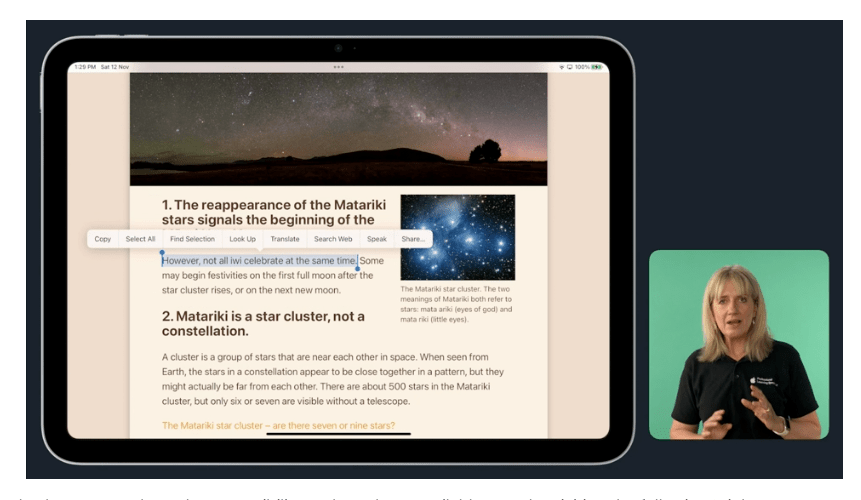
We then went on to discover the power of built-in accessibility tools within Safari that can really help students as they research information. Some of the features we looked at were:
- Reader View
- Look up
- Speak Selection (having text spoken to you)
- Find tool (new to iOS16)
- Sharing options – including sending to Notes
- Taking a Screenshot, using Mark Up and saving as a pdf
- Taking a Screen Recording as you Mark Up – encouraging students to articulate their understanding of what they are reading in their research
This was just a very small taste of how the built-in accessibility features can really impact student learning – and our own personal use of iPad!
Click here to see the recording of the session on the Apple Education Community Forum
App Prototyping on iPad
Recently I delivered an online workshop that explored App Prototyping using iPad – as a part of the Apple – Engaging Primary Learners with iPad Series. I shared a number of useful resources and weblink as a part of the session. I have pulled them all together in a Padlet – should anyone be interested to explore further! 😊 It also contains a demonstration video that I created – showing how students (of all ages) can use Keynote to easily create app prototypes.
Creating a Personal Learning Journal with Pages
Pages is a fantastic tool for creating digital learning journals/scaffolds that can be easily shared with students.
A digital learning journal can not only provide a great scaffold for learning, it can also give our students the opportunity to receive information and express themselves in different ways – using text, audio, drawing, photo and video.
As a part of the Back to School 2023 series, we demonstrated how you can easily create your own learning journals for students using Pages on both iPad or MacOS. This content will be available to view until March 31 on the Back to School Series 2023 site, accessible at: http://apple.co/b2s23
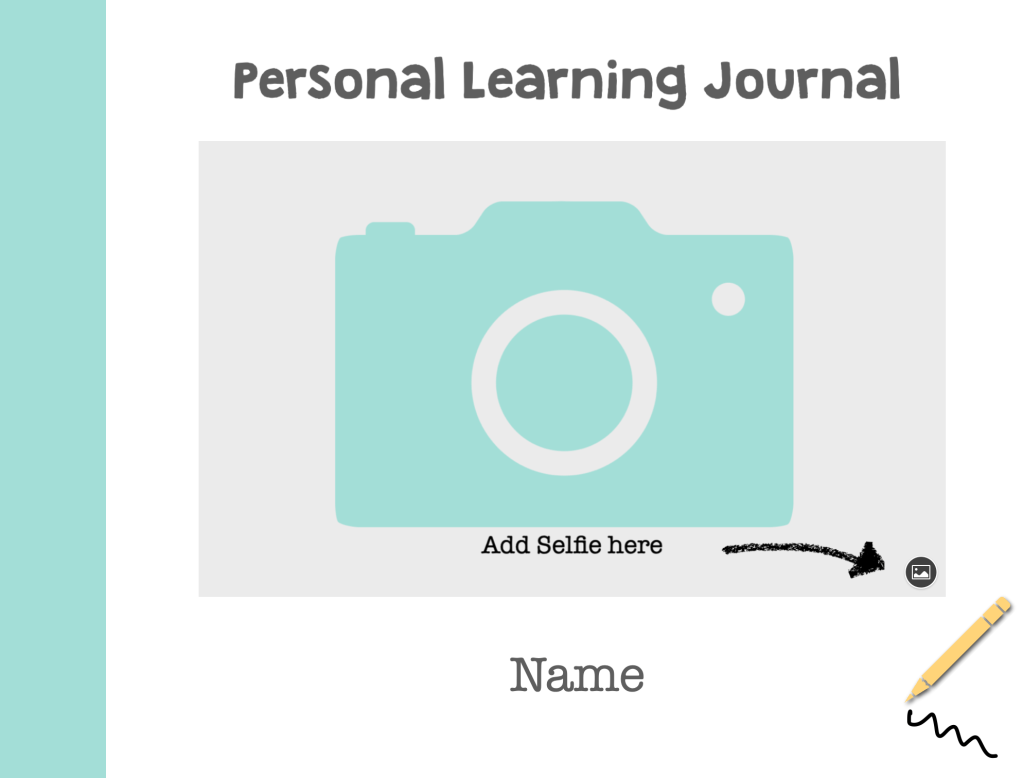
The example I used in the demonstration was a personal learning journal that invites students to reflect on their learning and wellbeing. It shows examples of how students might interact with a digital journal and can very easily be modified and personalised, depending on the students you are working with.
This journal was inspired by many great examples that have been posted to our Education Community forum. I have put together a Padlet to share with you links to resources that I found very useful in this process:
Storytelling through Keynote Animation
Keynote would have to be one of my favourite apps! There are so many different outcomes that students can create. I especially love using the animation tools with students and empowering them to be story tellers.
During mid-winter in Aotearoa New Zealand we celebrate Matariki. Matariki is the Māori name for the cluster of stars – also known as Pleiades. The rising of these stars signal the start of the Māori New Year.
The name Matariki is an abbreviation of ‘Ngā Mata o te Ariki Tāwhirimātea’ (The eyes of the god Tāwhirimātea). This is a traditional story about the god of wind (Tāwhirimātea) who threw his eyes into the sky in a fit of rage after the separation of his mother (Papatūānuku) and father (Ranginui). The eyes formed the Matariki star cluster that we know today.
Attached is a Keynote presentation that I have used with both teachers and students that takes you through the process of animating a scene from that particular story using a combination of Tayasui Sketches School and Keynote animation.
Here is a short video demonstration of the process:
This workflow can be applied to any story scene and is a great way to familiarise students with the amazing tools that Keynote has to offer. In addition to the Keynote presentation, there is a pdf attached that will also support students through the process.
To explore more possibilities for using Keynote animation, you can check out Chapter 3 of Everyone Can Create Video Guide on the Bookstore or visit the Everyone Can Create Projects page in the Apple Education Community Learning Centre.
Follow My Blog
Get new content delivered directly to your inbox.
 Revelare